

Headlines
Cleaner Gameplay and Anime Clip Edits


What to Fix Before Uploading Fan Videos
This is an everyday struggle for anyone editing gameplay clips or AMVs from their own footage. The clip looks fine on your second monitor. The capture card feed’s clean, the overlay’s readable, the timing lines up with the audio.
Then it finishes uploading, and that’s not true anymore. The HUD text you added is smeared into the background.
Gameplay that looked sharp in your editor now looks like “someone screen-recorded a screen-recording”. That AMV cut you spent a weekend syncing to the beat drops looks muddier than the raw footage did before you touched it.
That con-panel clip you filmed on your phone, hoping to catch a good cosplay moment, looks worse than it did on your camera roll.
None of that means you did something wrong in the edit. It’s what happens between your export and the platform’s encoder, and most editors never figure out why.
They just assume the source footage was worse than it looked to begin with…
Why Your Footage Falls Apart After Upload
Every platform re-encodes whatever you upload, no matter how clean the file already is. What matters is what you’re feeding into that process, because compression stacked on compression adds up fast.
- Low-res sources get hit hardest. 720p capture card footage gives the encoder almost nothing to work with, so it guesses at detail that was never really there, worst around motion, fast pans, quick AMV cuts.
- Retro console footage, capturing from older systems (PS2, GameCube, older handhelds via a capture card) where the source signal itself is lower resolution to begin with, so even a good capture card can’t invent detail that was never in the original output
- Phone-recorded con-panel clips stack the problem hardest, especially anything with fast movement, a crowd shuffling past, a cosplayer spinning for the camera. Compressed on record, compressed again on export, then a third time on upload, before anyone’s even hit play.
This is why fixing footage before you upload matters more than fixing it after. Once it’s gone through, there’s no getting that detail back.
What to Fix Before It Ever Hits Export
A few things are worth checking before you export at all, since catching them here is faster than re-uploading later.
Overlay legibility at actual upload resolution
A subscribe bug in 12pt font looks fine at 1440p on your edit monitor. Scaled down to how most people actually watch, on a phone, in a feed, at 480p because their connection’s bad, that same text turns into a gray smudge. Preview at that size before you export, not after someone comments asking what it says.
Leftover recording-software branding
OBS doesn’t add one by default, but a lot of free capture and screen-record apps, the kind bundled with a cheap capture card or downloaded off a forum years ago, drop a small logo in the corner unless you dig into settings and turn it off. If you’ve been using the same setup since you started editing, it’s easy to stop seeing it entirely.
HUD clashes with your own overlay
A commentary facecam or a timer sitting bottom-right will collide with a game’s own health bar, minimap, or kill-feed the second the action gets busy. Fine during a slow cutscene, unreadable the moment both are fighting for the same eight square inches during a boss fight.
Cleaning Up Your Own Overlay Before It Goes Anywhere
Most overlay problems in fan edits aren’t studio watermarks. They’re stuff your own recording setup added, and you just stopped noticing it. For instance, in this video, there are some unnecessary overlays that needs fixing:
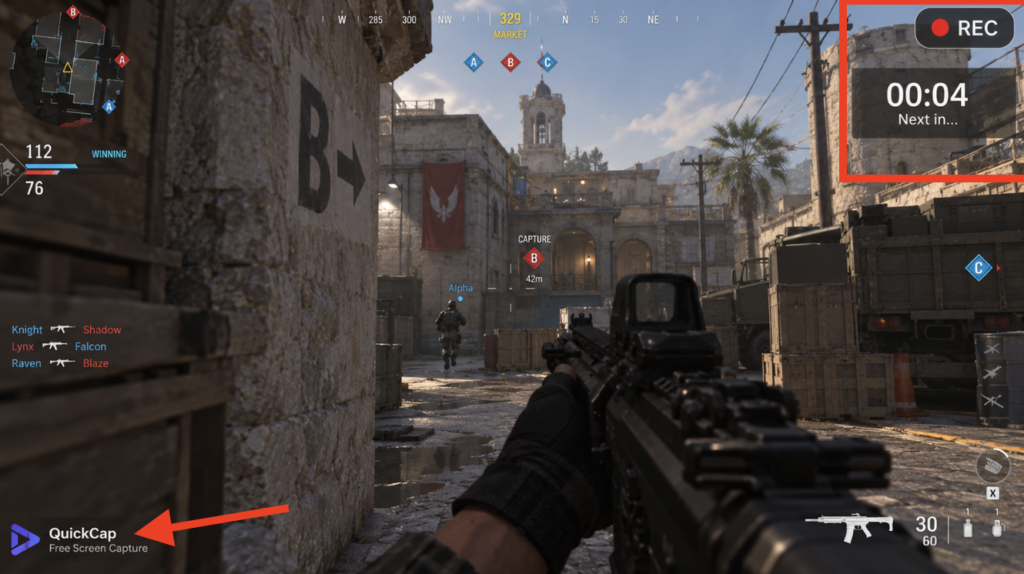
- A REC indicator sitting in the corner the whole clip, because your software puts it there by default
- A countdown timer left over from testing something, never meant to make the final cut
- A small logo stamp, ApowerREC, whatever free tool you’re running, branding every export until you pay for it or dig three menus deep to turn it off
None of these belong near a gameplay clip or an AMV. It’s not part of the game, not part of your edit, just leftover software chrome nobody meant to publish.
It’s also hard to remove manually.
If you crop the frame, you lose part of the shot. Blur it, and you get an obvious patch sitting exactly where the logo used to be, which draws more attention than leaving it.
For clips like this, running it through Zawa’s video watermark remover is a lot faster than trying to mask it manually. Same clip, same HUD the game actually put there, minus whatever your recording software stamped on top of it.
How to Know It’s Actually Fixed
- In-game HUD elements, health bar, minimap, ammo count, all still there and untouched.
- No visible patch, blur box, or color mismatch sitting where the overlay used to be.
- Background detail behind the old spot looks consistent with the rest of the frame, not smoothed over.
- Only the REC indicator, timer, or logo is gone; nothing else in the frame has shifted.
Worth being clear: this only applies to overlays you added yourself, never anything from a studio, network, or licensed stream.
Fixing Muddy Footage Before the Encode Makes It Worse
Platforms allocate bitrate based on perceived frame complexity. A soft frame reads as low-detail, so the encoder gives it less bitrate, backwards from what it actually needs.
Compression encodes inter-frame deltas instead of full frames, so a fast pan or beat-synced cut with existing motion blur gives the encoder two degraded reference frames to calculate motion vectors from.
It tends to miscalculate, smearing artifacts across frames that weren’t even blurred originally.
It has to be handled before export.
Enhancing the clip with an AI video enhancer like Zawa beforehand gives the encoder cleaner source data, sharper edges, and more stable motion vectors.

It won’t rescue frames that are genuinely out of focus, but the general softness that would’ve compounded through a second compression pass comes back cleaner before that pass happens.
What a Good Enhancement Actually Looks Like
- Gun details, the scope, the grip texture, the muzzle, come back sharper without looking cut-out or outlined
- Character movement and camera pans still look like motion, not smoothed into something plasticky
- Skin, metal, and gear textures still look like their actual material, not waxy or rendered
- HUD elements, ammo count, health bar, minimap, become legible, not just brighter
Parting Comments
Most editors in this space spend hours getting a cut right, timing beats, matching transitions, picking the exact frame a hit lands on. Then a REC light or a soft 720p source undoes half of it before anyone’s even judged the edit.
That gap, between how much care goes into the cut and how little goes into the footage feeding it, is usually the difference between a video that gets taken seriously and one that gets scrolled past. Fixing it isn’t extra work tacked onto the process. It’s the part of the process most people skip.





You must be logged in to post a comment.